What are OneNote Templates?
OneNote templates are pre-designed page layouts that provide structure and formatting for specific types of notes. They help you maintain consistency and save time by providing ready-made formats for common note-taking scenarios.
Template Categories
Academic Templates
- Lecture Notes
- Research Papers
- Study Guides
- Assignment Planners
- Lab Reports
- Reading Notes
Business Templates
- Meeting Minutes
- Project Planning
- Status Reports
- Client Notes
- Budget Tracking
- Team Collaboration
Personal Templates
- Daily Journal
- Travel Planning
- Recipe Collection
- Goal Setting
- Health Tracking
- Event Planning
How to Apply Templates
📋
Insert Tab Method
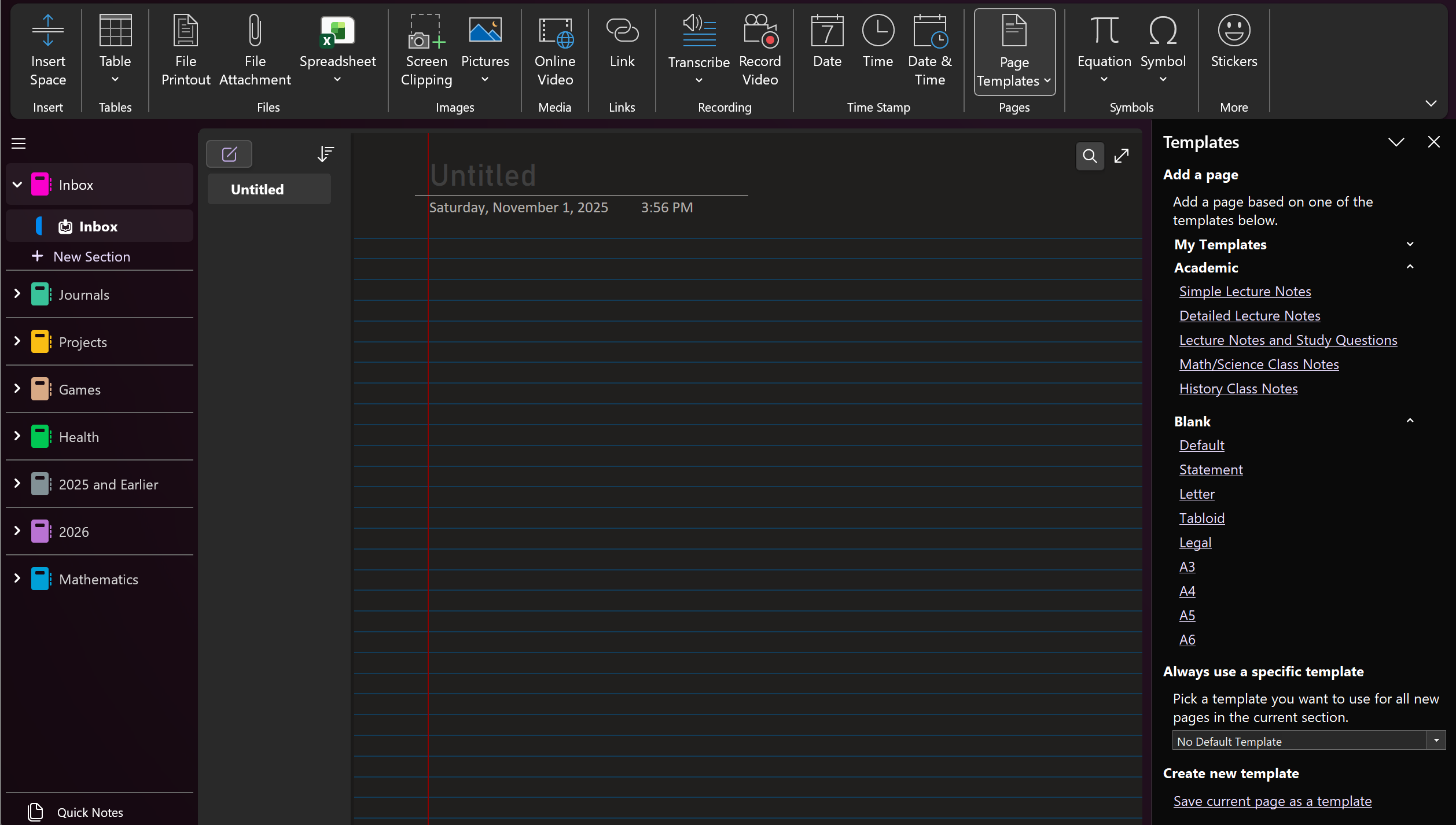
Go to Insert > Page Templates and choose from the gallery
➕
New Page with Template
Right-click in page list and select "New Page with Template"
🔍
Template Search
Search for specific template types using keywords
Steps to Create a Custom Template
- Create a new page with your desired layout and formatting
- Add placeholder text, tables, or other elements
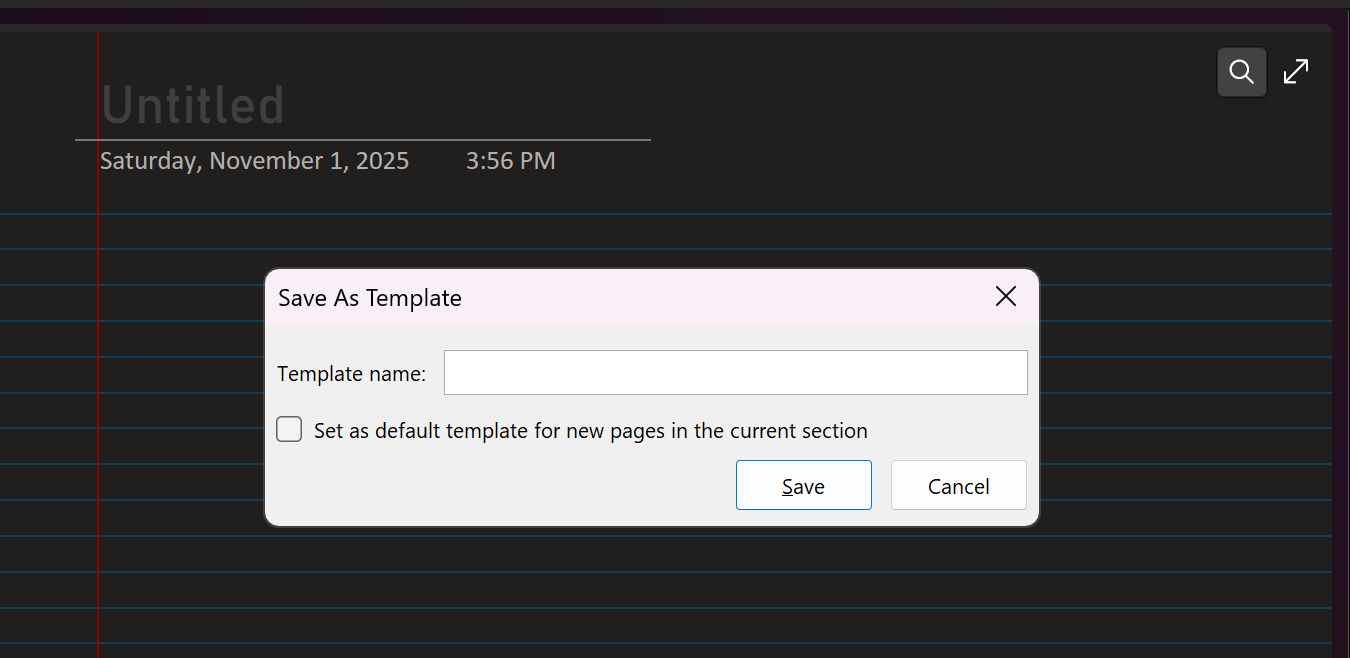
- Go to Insert > Page Templates > "Save current page as template"
- Give your template a name and description
- Choose whether to make it available to all notebooks
- Your template is now available in the template gallery
Popular Template Examples
📝 Meeting Minutes Template
Meeting: [Meeting Name]Date: [Date]Attendees: [Names]Agenda Items:• [Item 1]• [Item 2]Action Items:□ [Task] - [Owner] - [Due Date]📚 Lecture Notes Template
Course: [Course Name]Date: [Date]Topic: [Lecture Topic]Key Points:• [Point 1]• [Point 2]Questions:? [Question 1]Follow-up: [Action items]Template Best Practices
- Keep it Simple: Don't overcomplicate templates with too many elements
- Use Placeholders: Include [bracketed] placeholder text for easy replacement
- Consistent Formatting: Use consistent fonts, colors, and spacing
- Test Before Saving: Make sure the template works as expected
- Regular Updates: Refine templates based on actual usage
- Share with Team: Make useful templates available to colleagues
SCREENSHOT HERE OF a custom template being created, showing the design process and placeholder elements